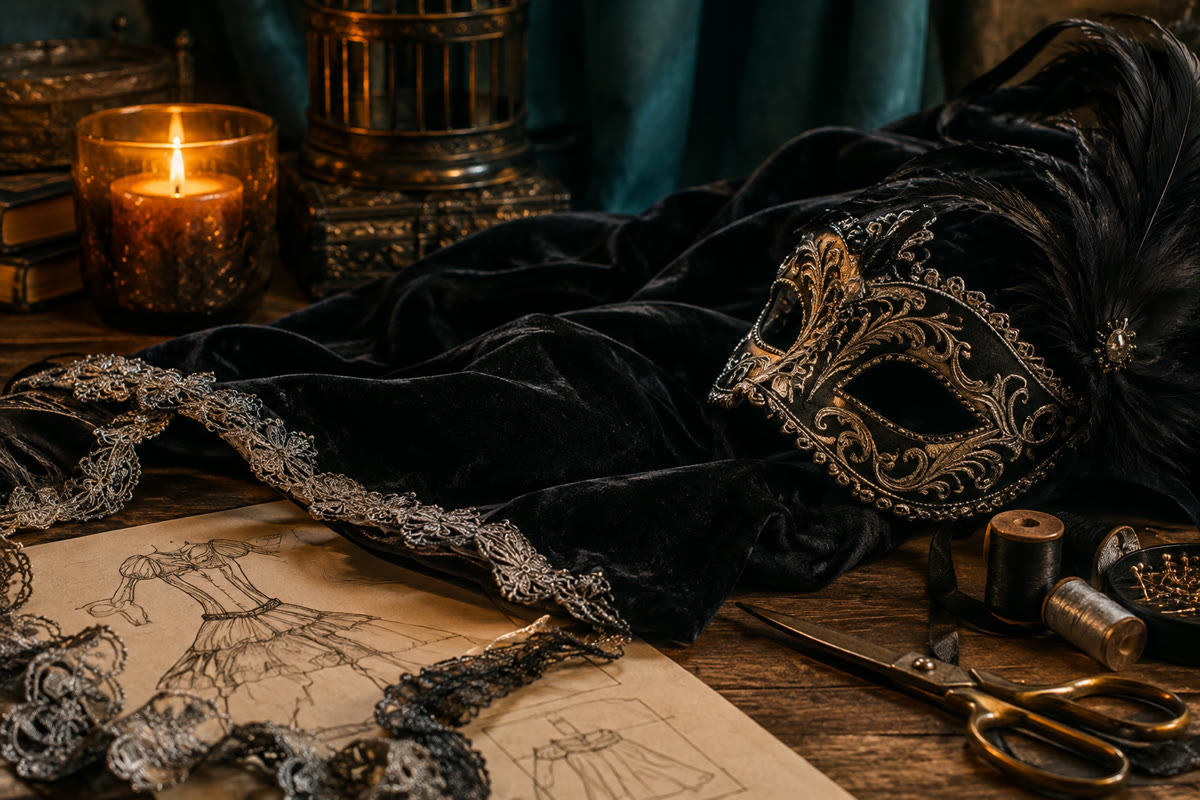
Try this workflow without leaving the page
The tool below uses the same format described in this guide. Check the photo, cost and limits before you generate.
Create a party portrait
Upload one or two permitted adult photos and choose a look. The editor keeps the person recognizable while changing the outfit, light and scene.
JPG, PNG or WebP - up to 10 MB. Use one adult per photo.
$1.98/ per image
10 credits per imageAI results vary. Review the image before sharing and label it as AI-generated.
See all packs · A 50-credit one-time pack covers up to five image edits.
Your portrait
Your next portrait will appear here.
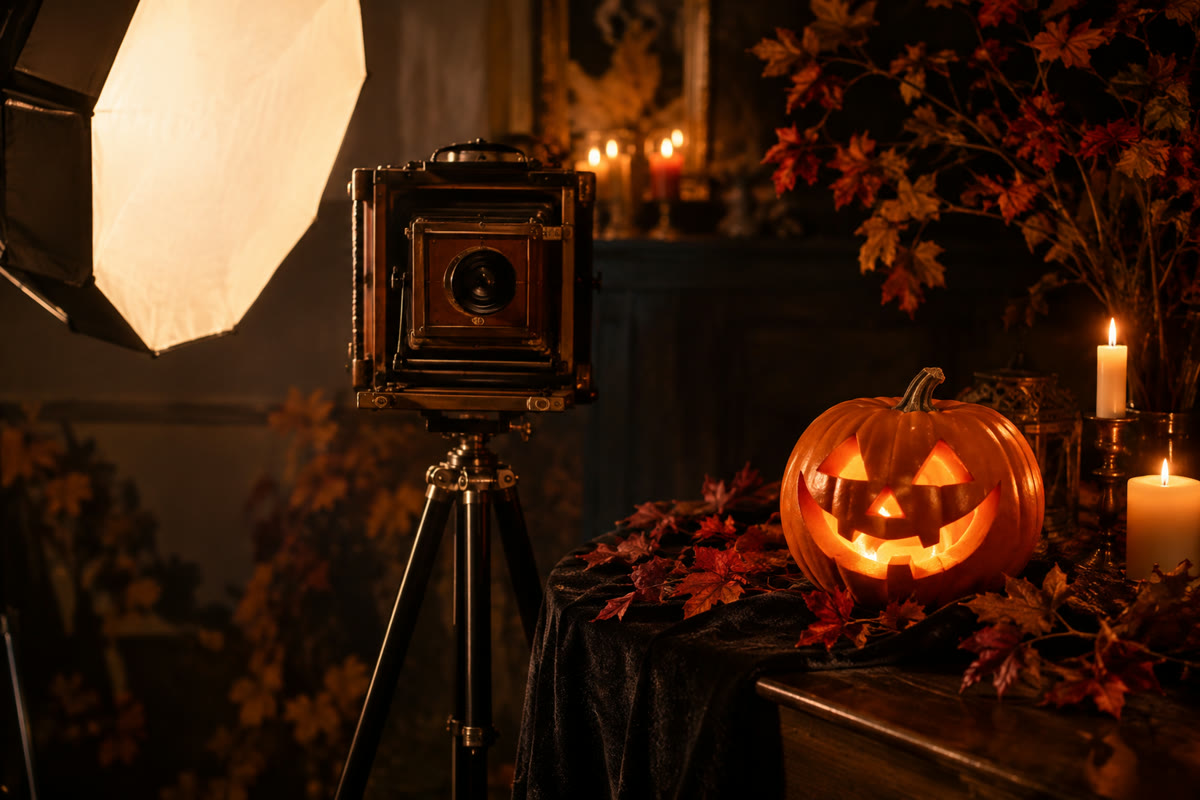
A Halloween photo editor is most useful when the person already looks like themselves. The job is to change the room, the light and a few costume details around that person, not to replace the face. This guide shows how to use the Halloween photo editor, which photos respond well, how to write a background-only prompt, and what the 10-credit image edit can and cannot do.
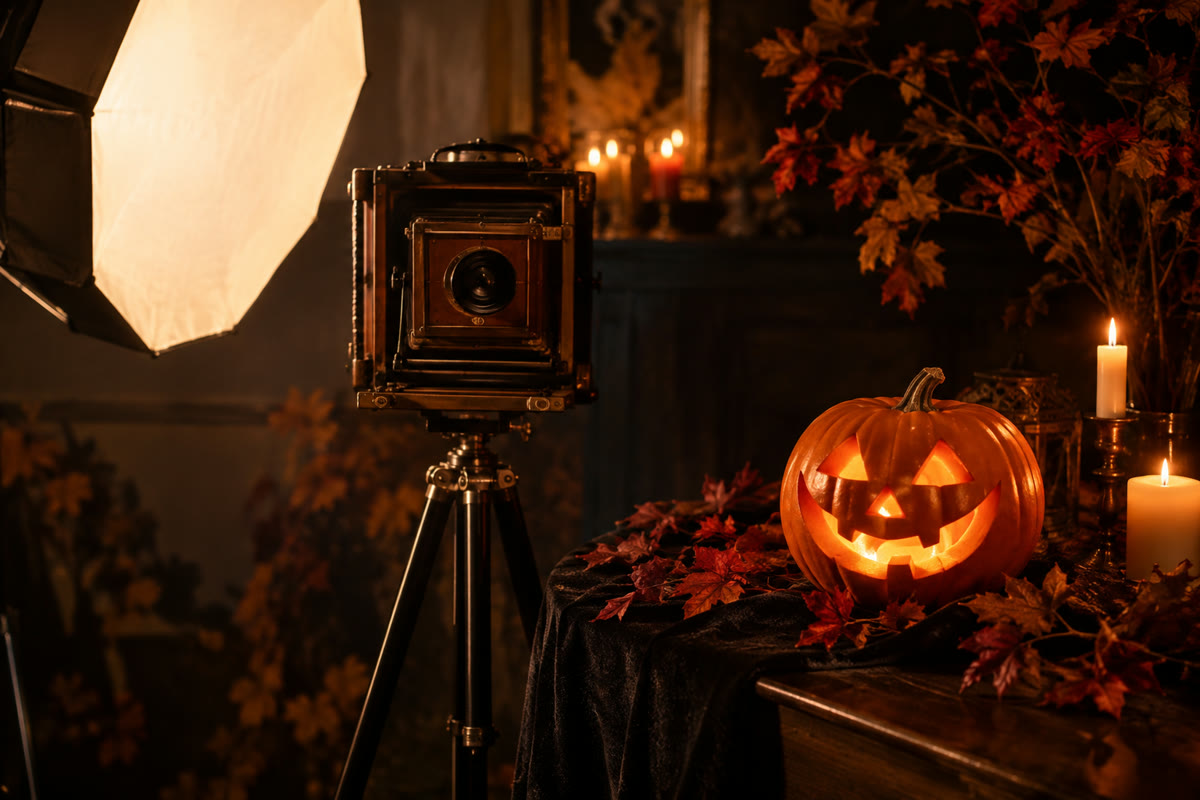
Atmosphere first, costume second
There are two different jobs people describe as a Halloween edit. The first is an atmosphere change: fog, candlelight, carved pumpkins, autumn leaves and a darker room. The second is a costume change: new clothing, makeup, hair or accessories. They are not the same request, and mixing them without a clear order makes the result harder to control.
Start with atmosphere when you want a recognizable portrait for a profile, an invitation or a group chat. Start with costume when the clothing is the main idea. If you want both, change the atmosphere first, check the result, then add one costume detail. A single edit that asks for a new face, a new outfit, a new room and a new lighting setup gives the model too many variables to solve at once.
The Halloween photo editor is built for the atmosphere-first path. It keeps the original clothing unless you ask for a change, and it adds seasonal details around the subject. The AI Halloween costume generator is the better starting point when the costume is the whole idea.
Which photos respond well
The source photo does most of the work. A front-facing portrait with even light and a simple background gives the editor a clear subject to preserve. A photo with several people, heavy beauty filters or a strong shadow across the eyes gives the model more chances to invent a new face.
Use a JPG, PNG or WebP file up to 10 MB. One adult per photo. The service is for adults only, and every person in the photo must have agreed to this use. Do not upload a child, a public figure or someone else's photo without permission.
Here is a practical checklist:
- Face is visible, both eyes are clear and there is no large object in front of the mouth.
- Light is even enough to see skin texture and the hairline.
- The background is simple, or at least not full of faces and text.
- The subject is the main part of the frame, not a small figure in the distance.
- Clothing and shoulders are visible if you want a costume detail near the neck.
- The photo is sharp. A blurry source will stay soft no matter how good the prompt is.
If the photo is dark, ask for soft fill light rather than a completely new face. If the photo is heavily filtered, use the original camera image if you still have it. The editor can add atmosphere, but it cannot recover detail that was never captured.
A background-only prompt
The safest prompt changes one layer: the background and the light. Keep the subject, clothing and pose unchanged, then describe the room.
Use this structure:
- Keep: the adult subject, face, hair, skin tone, clothing and pose.
- Background: a foggy autumn garden at dusk with dark hedges and a few carved pumpkins.
- Light: warm lantern light in the distance and a subtle cool rim light on the hair.
- Avoid: extra people, altered identity, distorted hands, text, logos and watermarks.
A complete example:
"Keep the adult subject, clothing and pose unchanged. Replace only the background with a foggy autumn garden at dusk, with dark hedges, a few carved pumpkins and warm lantern light in the distance. Add soft fog around the subject's feet and a subtle cool rim light on the hair. Preserve the original face, skin tone and body proportions. Use realistic photography with natural shadows. Do not add people, text, logos or watermarks."
That prompt is deliberately repetitive about keeping the person unchanged. Repetition is useful when the model has a strong tendency to redesign the subject. The avoid list is part of the brief, not decoration.
A costume-detail prompt
When you want a small costume change, name the garment and the material before the mood. "A black lace collar" is easier to follow than "gothic." "A silver mask held in one hand" is easier than "masquerade." Keep the change local: neckline, shoulders, one accessory, one makeup detail.
Example:
"Keep the adult subject's face, hair and body proportions unchanged. Add a black lace collar and a small silver brooch at the neck. Keep the original clothing underneath. Place the subject in a candlelit hall with warm chandelier light and soft autumn shadows. Use photorealistic editorial photography and natural skin texture. Do not add a new person, change the identity, distort fingers, add text or add logos."
If the result drifts, remove one sentence and run again. Do not add more adjectives to fix a structural problem. A model that is already changing the face will not stop because the prompt says "beautiful" three times.
Keeping the face stable
Identity preservation is not a guarantee. The editor rebuilds the image, so small features can move. The most useful controls are a clear source photo, an explicit keep instruction and a simple scene. A busy background with many faces gives the model more material to blend.
Check the result at full size. Look at the eyes, the hairline, the ears, the fingers and the edge where the neck meets the collar. If the face is close but the hands are wrong, crop the final image to a portrait if that solves the problem. If the face itself is wrong, regenerate with a simpler prompt rather than editing the output repeatedly.
The tool does not verify identity, age or consent. You are responsible for the photo and the use. Do not present an edited image as a real photograph of an event. Label it as AI-generated when the platform offers that option.
What 10 credits buy
One still image edit uses 10 site credits. A video uses 50 site credits and returns a silent 10-second, 720p, 9:16 MP4. New email accounts receive no free generation credits. Check the pricing page before you start.
| Output | Credits | What you receive |
|---|---|---|
| Halloween still edit | 10 | One generated portrait image |
| Party video | 50 | Silent 10-second 720p 9:16 MP4 |
A failed generation returns the consumed credits. A successful generation uses the credits even if you do not like the creative result. That is why the first attempt should be a clear, simple direction. Treat each generation as a paid draft, not an unlimited slider.
If you only want to compare styles, read the Halloween AI prompts first. The prompt library is free to read and gives you a tested structure before you spend credits.
Safe publishing
Use only photos of consenting adults. Do not add a public figure, a child or a person who has not agreed to the edit. Do not use the result for harassment, impersonation, fraud or a false endorsement. The service is independent and is not affiliated with any film, costume brand or social platform.
If you publish the image, label it as AI-generated. Keep the original photo if you need a truthful record. A stylized Halloween portrait is a creative image, not evidence that a party, costume or event happened.
Frequently asked questions
Can I keep my original outfit?
Yes. Ask the editor to preserve the clothing and change only the background, lighting and small accessories. The result can still differ in fabric and detail, so check the collar and cuffs at full size.
Can I add fog and pumpkins without a costume?
Yes. That is the atmosphere-first workflow. Name the number and placement of the pumpkins, the density of the fog and the direction of the light. Specific nouns are easier to follow than a single mood word.
Why does the face look slightly different?
The model rebuilds the image instead of pasting the original face. A clear photo, an explicit keep instruction and a simple scene reduce the drift. If the face is still wrong, regenerate with fewer changes rather than adding more instructions.
How much does one Halloween photo edit cost?
One still image edit uses 10 site credits. See the pricing page for current packs. The sample and the guides are free to read; generation requires purchased credits.
Can I use the image commercially?
Use it only for a lawful purpose and only with permission from the people depicted. Do not imply an endorsement or sell it as stock photography. If you plan to use it in an ad, check the platform's rules for AI-generated media first.
Related tools
- AI Halloween costume generator for a full costume portrait.
- AI party photo editor for a chandelier-lit party portrait.
- Halloween couple costume generator for two people.
- Halloween AI video generator for a silent 10-second entrance.
Continue with AI Halloween Costume Generator Guide for 2026 Season for the next step.
Everyone needs a purchased pack or plan to create a personal video. Watch the sample for free, then choose the offer that fits your needs. Try the workflow