Try this workflow without leaving the page
The tool below uses the same format described in this guide. Check the photo, cost and limits before you generate.
Create your Burning Bridges video
Choose text or photos. Describe a scene, or add one or two adult guests. AI results can vary.
JPG, PNG, or WebP · up to 10 MB
Use a clear photo of one adult facing the camera. Include the outfit for full appearance. In duets, photo 1 replaces the first role and photo 2 the second.
Public results may be selected for our gallery after review. Your photos remain private.
Payment is required to create your video
Everyone needs a purchased pack or plan to create a personal video. Watch the sample for free, then choose the offer that fits your needs.
$9.90/ 1 video
50 credits · 10 secondsNo music included — add licensed music after export.
Choose a one-time pack or a monthly or yearly plan. See all five offers below.
Your videos
Select a scene above. Completed videos will appear here.
$9.90/ 1 video
One-time pack · no subscription
Two-person AI videos fail for a simple reason: the model loses track of who is who. A solo clip has one face to preserve. A duet has two faces, two outfits and a shared scene, and every extra detail is another chance for the roles to blend. This guide explains how the two-person AI video generator maps two photos to two roles, how to pair the inputs, and what to change when the faces swap.
How role mapping works
The tool takes two separate photos. Photo one becomes the adult on the left. Photo two becomes the adult on the right. The prompt repeats that mapping and tells the model not to swap identities or add a third person. The result is a silent 10-second, 720p, 9:16 MP4 that uses 50 site credits.
The mapping is a direction, not a guarantee. Generative models can blend faces when two people stand close together, wear similar clothing or have similar hair. The best way to protect the mapping is to make the two people visually distinct before the generation starts. Different outfit colors, different silhouettes and a clear left-right composition all help.
If you want a two-person still image instead, use the Halloween couple costume generator. It uses the same two-photo logic for a still portrait and costs 10 credits.
How to pair two photos
Choose two photos with similar lighting, similar framing and one adult in each. A dark photo beside a bright photo produces an uneven result. A close-up beside a full-body shot makes the scale hard to match. A photo with two people in the same frame defeats the role mapping, because the model has to choose which face belongs to which role.
Use JPG, PNG or WebP up to 10 MB per photo. Both people must be adults and both must consent to the upload and the use. Do not use a photo of a colleague, a friend or a public figure without permission. Do not upload a minor.
A practical pairing checklist:
- One adult per photo, facing the camera.
- Both faces are sharp and evenly lit.
- Both photos include the shoulders or upper body.
- The two outfits are different enough to tell apart.
- The backgrounds are simple and do not contain other faces.
- Neither photo has heavy filters or text across the subject.
If the photos are mismatched, fix the weaker one first. A clearer source photo is usually a better investment than another generation.
A complete duet prompt
A duet prompt needs the role map, the shared scene and an avoid list. Here is a complete example for a party entrance:
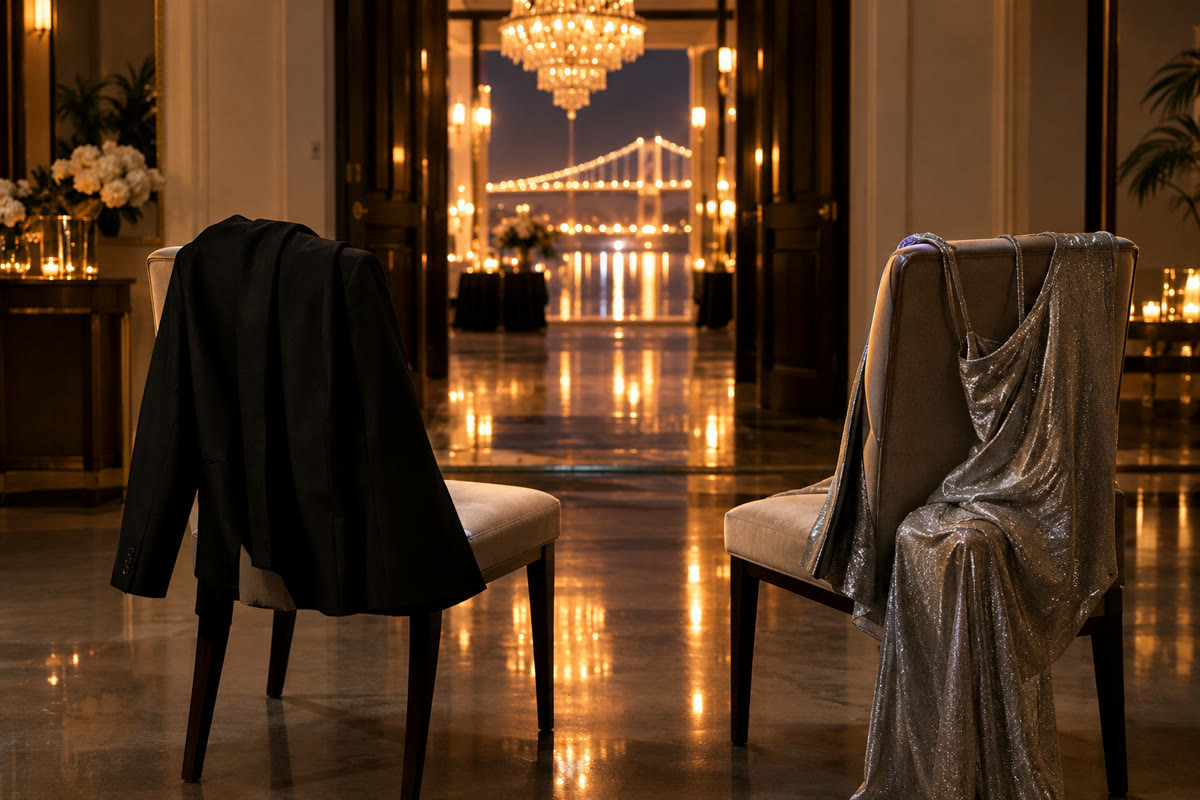
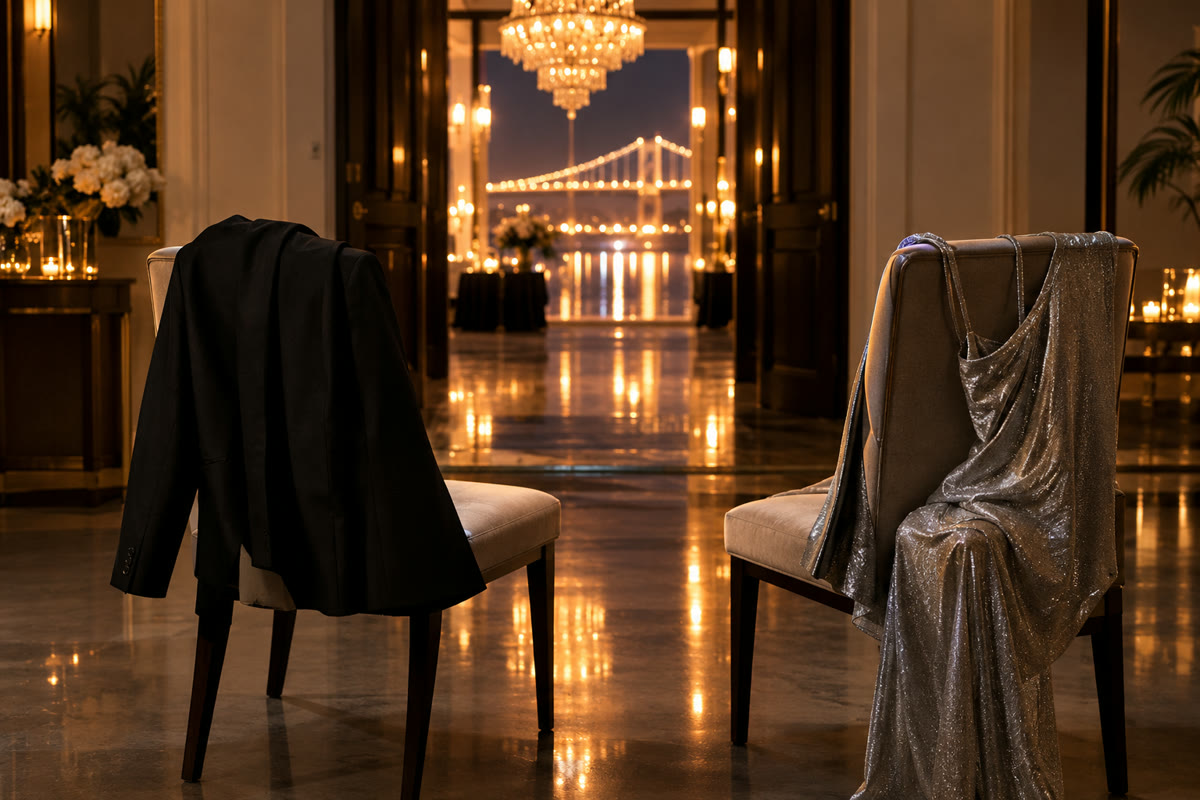
"Use the two provided photos as exact references. The adult in photo 1 is the person on the left; the adult in photo 2 is the person on the right. Keep both identities, faces, skin tones, body proportions and outfits consistent. They walk side by side across a glowing bridge into a warm chandelier-lit party. The left adult wears a black suit; the right adult wears a silver dress. Use a slow camera push-in and natural, stable motion. Do not swap faces, add a third person, duplicate limbs, introduce sudden scene cuts, add text or add watermarks."
The prompt repeats the left-right mapping because that is the part most likely to drift. It also gives each person a distinct garment. If both people wear the same color, the model has less information to separate them. If the scene has a crowd, the model has more faces to blend. Keep the background simple.
For a wedding or bachelorette variation, use the same structure and change the scene and outfits. The Burning Bridges wedding video and bachelorette video pages show the format for those occasions.
Why faces swap and what to change first
There are four common causes. The photos are too similar. The two people stand too close. The prompt does not repeat the role map. The scene asks for a crowd or a fast camera move that gives the model more chances to improvise.
Fix them in that order. Use two distinct outfits. Ask for a clear left-right composition with space between the people. Repeat the role map in the prompt. Remove the crowd and slow the camera. Do not add more adjectives to the same prompt and expect a different result.
If one face is correct and the other is wrong, check whether the wrong face appears in the background of the source photo. A reflection, a poster or a second person in the frame can contaminate the reference. Crop the source to one adult and try again.
If the bodies merge, ask for "two separate adults, clear space between them, no overlapping bodies." If the hands are wrong, keep the hands out of frame or choose a composition where the hands are not the focus. A ten-second clip does not need a close-up of fingers.
The exact output, credits and refunds
A duet clip is 10 seconds, 720p, 9:16 and silent. It uses 50 site credits. The sample on the tool page is a first-party demonstration, not a guaranteed result. Your output will differ.
| Item | Detail |
|---|---|
| People | Two consenting adults, one per photo |
| Duration | 10 seconds |
| Resolution | 720p, 9:16 vertical |
| Audio | Silent; add licensed music after download |
| Credits | 50 per generation |
A failed generation returns the consumed credits. A successful generation uses the credits even if the creative result is not what you wanted. That is why the first attempt should use clear, compatible photos and a simple scene. Check the pricing page for current packs.
If the status of a request is uncertain, contact support with the job ID before retrying. A second submission can create a second charge if the first request was already accepted.
Consent between two people
Both adults must agree to the upload and the use. A public social post is not permission to use someone's face in a generated video. If you are planning a surprise, ask first. A surprise is not consent.
Do not use the clip to embarrass, impersonate or mislead. Do not present it as footage from a real party, wedding or event. Label it as AI-generated when you publish it. Keep the original photos private and take the clip down if one of the people withdraws permission.
Frequently asked questions
Can I use two photos of the same person?
The tool expects two different adults. Two photos of the same person can confuse the role mapping and is not a supported use case.
What if the faces swap?
Use two distinct outfits, leave space between the people and repeat the left-right mapping in the prompt. If the swap continues, simplify the scene and remove any crowd or background faces.
Can I add a third person?
No. The current video supports at most two people. Make separate duet clips and combine them in a normal editor if you need a group montage.
How much does a duet clip cost?
One duet clip uses 50 site credits. See the pricing page for current one-time packs and plans.
Does the clip include music?
No. The MP4 is silent. Add licensed music in TikTok, Reels or another editor after download.
Related tools
- AI party video generator for a solo entrance.
- Burning Bridges wedding video for a formal duo.
- Burning Bridges bachelorette video for a celebration duo.
- All party tools to compare formats and credits.
Continue with AI Party Portrait Guide: Outfit, Light and Background for the next step.
Everyone needs a purchased pack or plan to create a personal video. Watch the sample for free, then choose the offer that fits your needs. Try the workflow